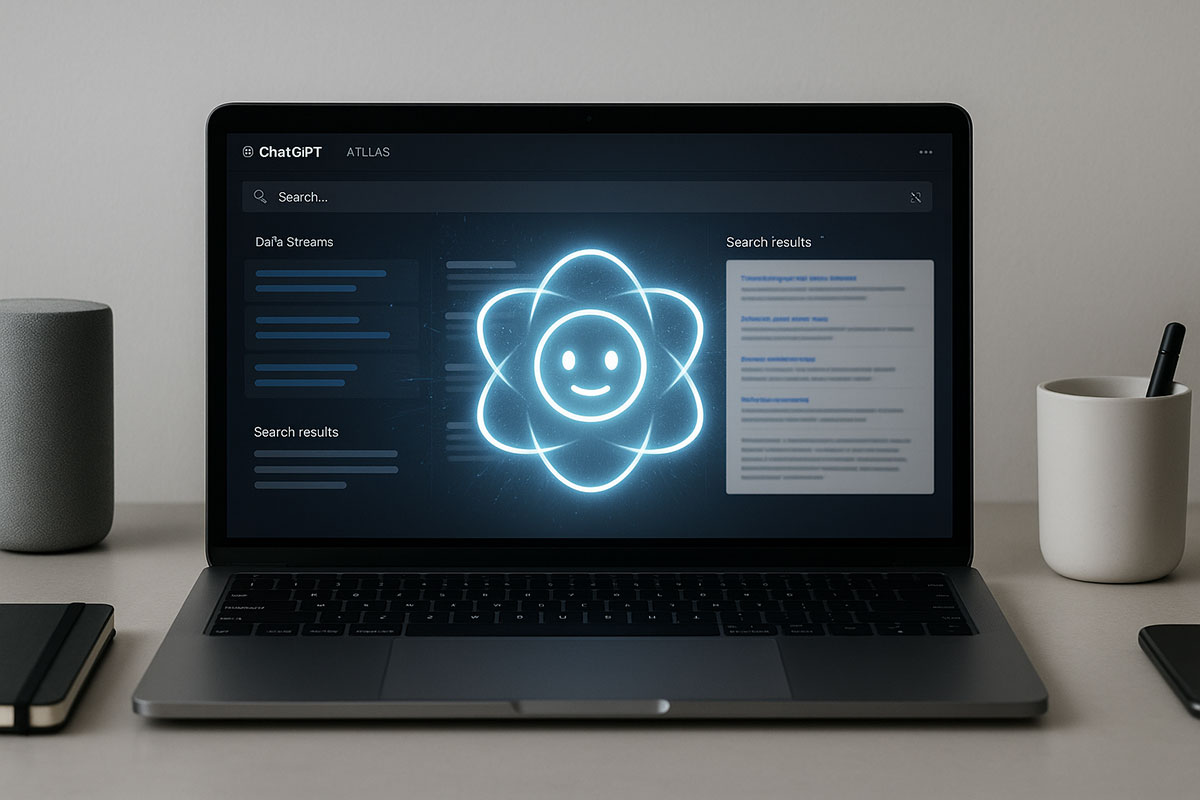
Introduction: The Browser is Now an AI Research Assistant
For millions of users, the process of creating content or researching a topic has been a disjointed dance: a browser tab for search, another for ChatGPT, and a third for your draft document, constantly copying and pasting between them. This workflow is now obsolete.
With the launch of the ChatGPT Atlas browser, OpenAI has fundamentally closed this loop. Atlas isn't just a browser with a chatbot sidebar; it's a deeply integrated environment where AI understands the context of every page you visit, remembers your previous research, and can even take action on your behalf. For creators, students, and professionals, this isn't a minor update—it's a quantum leap in productivity. This guide will walk you through how to harness its power for faster, more accurate research, verification, and writing.
What is ChatGPT Atlas? Beyond Basic Browsing
ChatGPT Atlas is a new web browser built from the ground up by OpenAI, with ChatGPT deeply embedded into its core. As of its launch in October 2025, it's available globally for macOS, with Windows and mobile versions coming soon
Think of it as merging the comprehensive reasoning of ChatGPT with the dynamic, real-time power of the internet. Instead of manually searching, scrolling, and synthesizing information, Atlas allows you to conduct research through a conversational dialogue with an AI that understands what's on your screen.
Core Features You'll Use Every Day
- Ask ChatGPT Sidebar: Open a chat interface on any webpage to summarize, analyze, or ask questions about the specific content in front of you
- In-line Writing Help: Get AI-powered suggestions and edits directly within text fields like email composers, Google Docs, and forms without any copy-pasting
- Browser Memory: When enabled, Atlas can remember key details from your browsing to offer smarter suggestions and help you retrieve pages you've visited before
- Agent Mode (Preview): For Plus, Pro, and Business users, this allows ChatGPT to perform multi-step tasks autonomously, like researching a topic across several websites and compiling a report
Setting Up ChatGPT Atlas for Maximum Efficiency
Getting started is straightforward. Download Atlas from the official website (chatgpt.com/atlas) and install it. During the setup, you can import your bookmarks, saved passwords, and history from your previous browser for a seamless transition
Once launched, take a moment to configure your privacy settings. By default, OpenAI states that your browsing content is not used to train its AI models, but you can review and adjust these settings in the Data Controls menu
Step-by-Step: Revolutionizing Your Research Workflow
This is where Atlas shines. Let's break down how to use it for a real-world research project.
1. Initiate a Research Session
Start by typing your research question directly into the Atlas new tab page. For example, "What are the latest breakthroughs in solid-state batteries for electric vehicles as of October 2025?"
Atlas will provide a conversational answer synthesized from live web results, complete with citations. You can then use the dedicated tabs for links, images, videos, and news to explore different types of sources
2. Deep Dive with the Sidebar and Agent Mode
When you find a promising source, open the Ask ChatGPT sidebar. Here, you can command the AI to:
- "Summarize this article in three bullet points."
- "Extract the key statistics from this report."
- "Explain the concept of technical term mentioned in the second paragraph."
For complex, multi-source research, activate Agent Mode. You can task it with a command like: "Visit the top three tech news sites and find the most recent articles on solid-state battery safety. Summarize the findings into a table." The agent will then autonomously navigate between sites, click links, and compile the information for you
3. Master the Art of Fact-Checking and Verification
In an era of misinformation, Atlas turns fact-checking from a chore into an instinctive part of your reading process.
- Verify Claims Instantly: Highlight any statement in an article, right-click, and use the "Ask ChatGPT" option from the context menu to check its accuracy or find supporting sources
- Cross-Reference Sources: Prompt the sidebar: "Are there other reputable sources that confirm this? Find contrasting viewpoints on this topic." Atlas can pull in live data to validate or challenge the claims on your current page.
- Understand Context: For complex or historical topics, ask for background. For example, "What is the historical context behind this political claim?" as seen in a practical example where a user checked the record of US political parties on deficits
Supercharge Your Writing Process
Atlas doesn't just help you find information; it helps you do something with it.
In-line Writing and Editing
When writing in a web-based editor like Google Docs or your website's CMS, simply highlight your text. A small ChatGPT icon will appear. Click it to get options to rewrite for clarity, shorten, expand, or change the tone. This eliminates the disruptive back-and-forth between tabs
Drafting and Outlining
Use the main chat interface in a new tab to overcome writer's block. Command it to: "Create a detailed outline for a 1500-word blog post on the impact of solid-state batteries on renewable energy adoption. Include an introduction, key sections, and a conclusion." You can then use the sidebar on each source you research to pull specific quotes or data directly into your outline.
How Atlas Stacks Up: Comparison with Perplexity & Gemini
Atlas enters a competitive field of AI-native browsers. Here’s how it compares for research and writing tasks.
| Feature | ChatGPT Atlas | Perplexity Comet | Google Gemini (in Chrome) |
|---|---|---|---|
| Core Strength | Deep integration, context-aware assistance, and autonomous task execution via Agent Mode. | Concise, source-heavy answers with a strong focus on search and discovery. | Seamlessness within the Google ecosystem and existing Chrome user base. |
| Research Depth | Excellent for multi-page, complex research projects with memory and agent support. | Ideal for quick, well-sourced answers to specific questions. | Good for general queries and leveraging Google's search index. |
| Writing Integration | Superior, with in-line editing help directly in web text fields. | Limited; primarily a research and Q&A tool. | Side-panel assistance, requires copy-pasting. |
| Best For | Creators, researchers, and professionals who need to research, verify, and write in an integrated workflow. | Users who need fast, factual answers with high-quality citations. | Existing Chrome users looking for AI augmentation within their familiar browser. |
As noted by industry observers, AI browsers are becoming the next major battleground, with each player offering a unique take on the integrated AI experience
Pros, Limits, and Essential Privacy Tips
Advantages and Current Limitations
Pros: Unmatched workflow integration, powerful context awareness, the unique potential of Agent Mode for automation, and robust citation management with numbered footnotes
Limitations: Agent Mode is still in preview and may struggle with highly complex workflows
Privacy and Safety Best Practices
- Control Browser Memories: Regularly review and archive your browser memories in settings, or turn the feature off if you are handling sensitive research.
- Use Incognito Mode: For private browsing sessions, use Atlas's incognito mode, which signs you out of ChatGPT and doesn't save your chat history or memories
- Supervise Agent Mode: OpenAI has implemented safeguards, but always monitor Agent Mode activities, especially on sites involving financial or personal data. The agent will pause for approval on sensitive actions
- Manage Site Access: Use the toggle in the address bar to prevent ChatGPT from viewing specific sites you deem private.
Conclusion: Your AI-Powered Workspace Awaits
The ChatGPT Atlas browser is more than a new product; it's a vision for the future of human-computer interaction. By seamlessly blending the vast knowledge of the web with the reasoning and conversational power of ChatGPT, it empowers you to learn, verify, and create with unprecedented speed and confidence. The learning curve is gentle, but the productivity payoff is massive. Stop juggling tabs and start commanding your new AI research assistant.
Related Reading
- 10 Best AI Productivity Tools in 2025 for Work and Study
- The Future of Work in 2025: How AI is Redefining Careers and Skills
- AI Agents in 2025: Your Ultimate Guide to Automating Work and Life
About the Author
Girish Soni is the founder of TrendFlash and an independent AI strategist covering artificial intelligence policy, industry shifts, and real-world adoption trends. He writes in-depth analysis on how AI is transforming work, education, and digital society. His focus is on helping readers move beyond hype and understand the practical, long-term implications of AI technologies.